
Minecraft
How to Back Up a Minecraft Server and Test a Restore
Back up your worlds, plugins and databases, then test a restore without touching the live server.
To back up a Minecraft server, stop it cleanly, create a completed copy of its worlds, plugins and configuration, and export any external plugin databases. Keep a copy outside the game server and test a restore on a separate installation before you rely on it. The steps below explain how to choose recovery points and check what your backup actually contains.
Build your backup plan around the server you run. A small friends-only world and a network with several game servers need different routines. The decisions below help you choose a routine and test it without touching the live world.
Decide how much progress you can afford to lose
Write down an acceptable recovery point in plain language: for example, the last evening’s building session. Then choose a backup schedule that fits it. If players build throughout the day, a single overnight copy may leave a larger gap than you expect. This is a planning choice, not a promise that any particular backup interval suits every server.
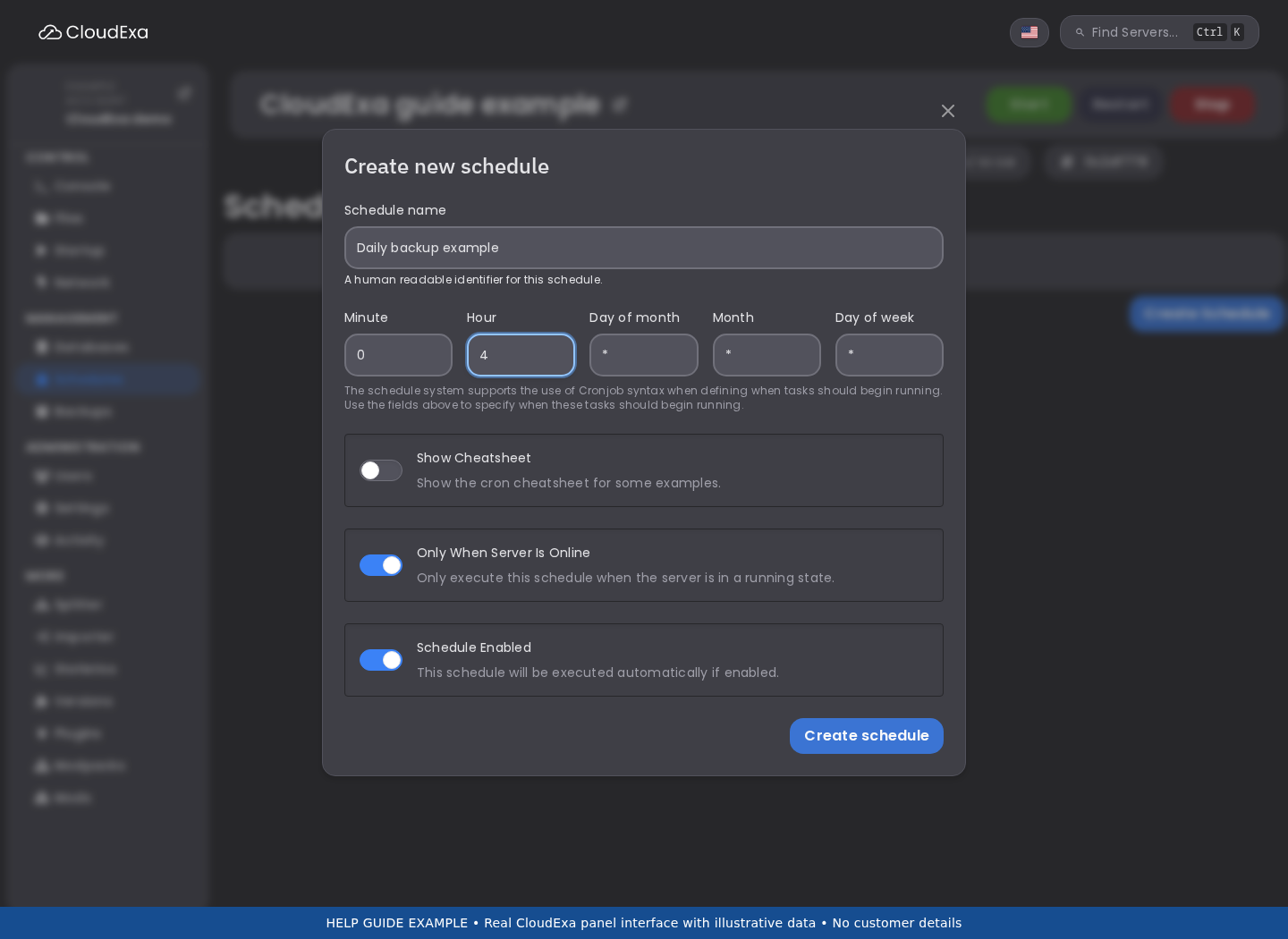
Choose a recovery-time target too. Downloading an archive, extracting it, restoring a database and checking player data all take time. Leave room for those checks rather than measuring recovery by how fast you can press Start. Use the scheduling and retention guide to check the controls available to your service.
Keep the files that belong together
Paper’s update instructions identify worlds, server settings, plugins and plugin configuration as backup material. Include the relevant folders together, then check any exclusions. A download that contains only the main world may omit another dimension, an imported world or plugin data stored elsewhere.
Make a short inventory of the parts you need to rebuild your server: world folders, the server build, Java runtime, plugin versions and configuration. Record where each plugin stores persistent data. Keep this inventory with the backup and protect credentials in configuration files from public access.
External databases need their own recovery copy. File backups of the game server do not capture a remote database. MySQL’s mysqldump documentation explains logical exports and consistency limits: a transactional dump does not give the same guarantees for nontransactional tables. Ask for help if you do not know which database engine or export method your plugin uses.
Take a checkpoint before a risky change
Use a planned pause before changing the Minecraft version, moving worlds or replacing a large plugin. Tell players, stop the server through the console and wait for saving to finish. Take the file backup and matching database export while the affected applications are stopped. If several servers write to the same database, arrange the pause across those writers too.
Label the checkpoint with the date and the planned change. Confirm completion before continuing. Follow the panel backup guide for the actual controls; the available allowance and permissions determine which actions you can use. Keep the checkpoint until you have checked the new setup with players.
Test recovery away from the live server
Use a separate test server or an isolated local copy. Give it its own ports and database, and disable outbound integrations that could send messages or change production accounts. Do not let the test copy connect to the live economy or permissions database. Keep its access restricted while you inspect the restored data.
Start with the recorded server and plugin versions. Join with a test account and check spawn, another dimension, inventories, permissions and a plugin feature that uses the database. Read startup logs for missing files or failed migrations. A successful boot proves less than a successful recovery of the things your players use.
Example: rehearse a plugin update recovery
Use this as a rehearsal checklist, not as a claim about a measured recovery time. Create a checkpoint before the update, then restore its files and matching database into an isolated test installation. Use a private test account and keep production integrations disabled.
- Check that the expected spawn and another dimension load.
- Compare the test account’s inventory and permissions with your checkpoint notes.
- If your economy uses a database, check a known balance in the restored database and confirm that the test server cannot write to production.
- Record the archive size, download and restore duration, missing dependencies and any errors.
If a check fails, retain the original backup and investigate the missing component. Do not replace the live world with the test copy. Repeat the rehearsal after you correct the recovery instructions.
Keep recovery copies available when you need them
Retain more than the latest copy so you can recover from a mistake that nobody spots on the same day. Keep a protected copy outside the game server as well, and check that you can still download and open it. Review storage use before a schedule fills its destination. Remove old copies only after you have checked the retention plan and kept the recovery points you need.
If you need to restore production, preserve its current state first where possible. Record the backup name, time and expected data loss, then arrange the change with your players. For a single missing inventory, read the inventory recovery guide before replacing a whole world. A smaller recovery can avoid rolling back everyone else’s progress.
Planning your first public session? Use the Minecraft launch checklist to test access and player data before opening.